CUSTOMIZATION: Skins, Emotes, My Room, My Banner and Nameplates!
In this sub-guide you'll learn about customization! This includes changing the skin/costume of your character, their emotes and their voicelines, as well as setting up My Room, My Banner, and choosing a different nameplate!
Customization: Customize Character
When going to the character customization screen, you will be able to choose which character to customize. After you choose them, you will see 4 tabs: Costume T.U.N.I.N.G., Voice, Emote and Emblem.
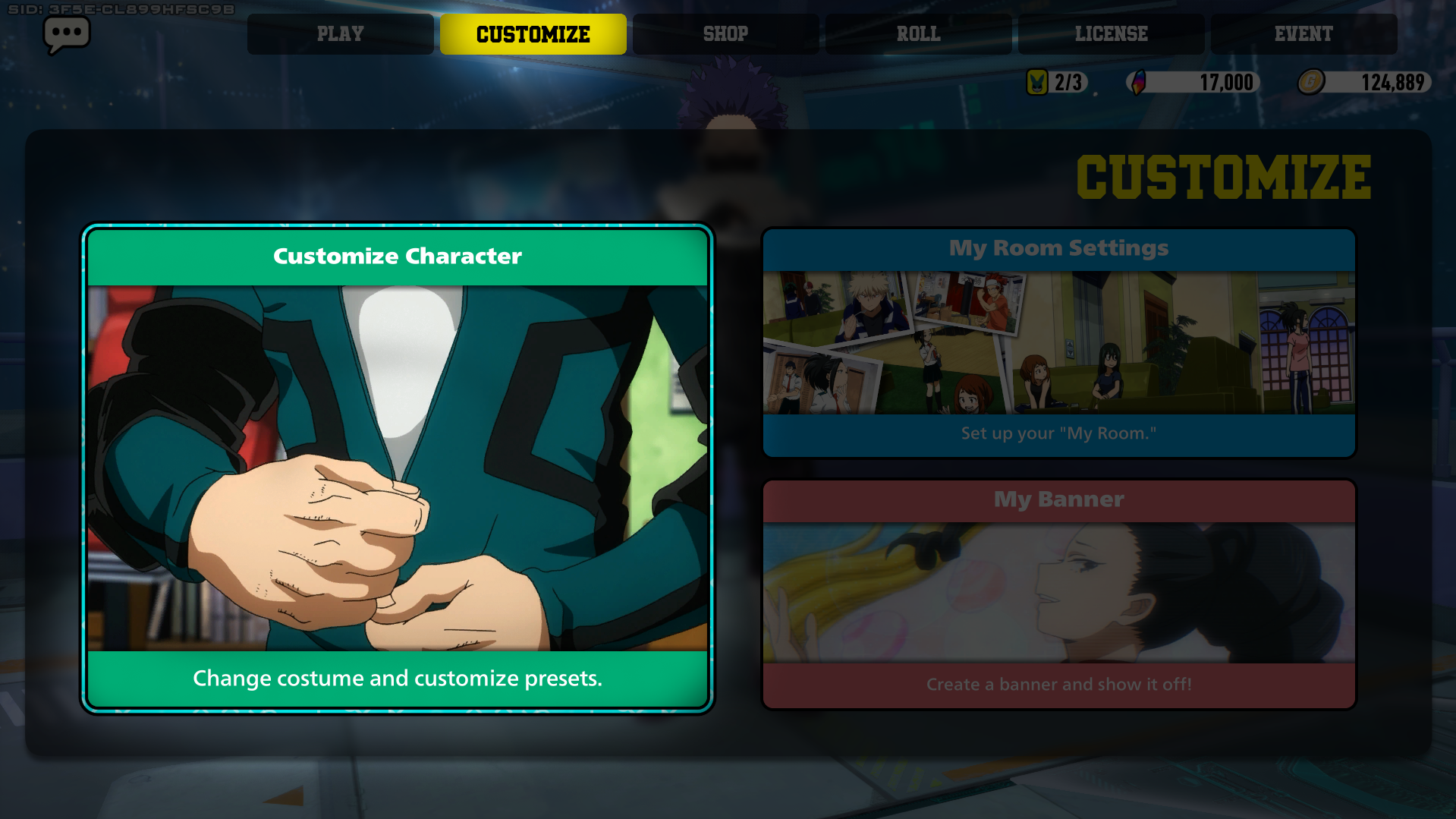
Costume T.U.N.I.N.G.
Here you can choose the costume you want your character to wear. Each costume line comes with 5 color variations, these are usually labeled as "Villain Style" (or "Hero Style" if it's a villain), "Heat", "Combat", "Fancy", and "Dangerous".
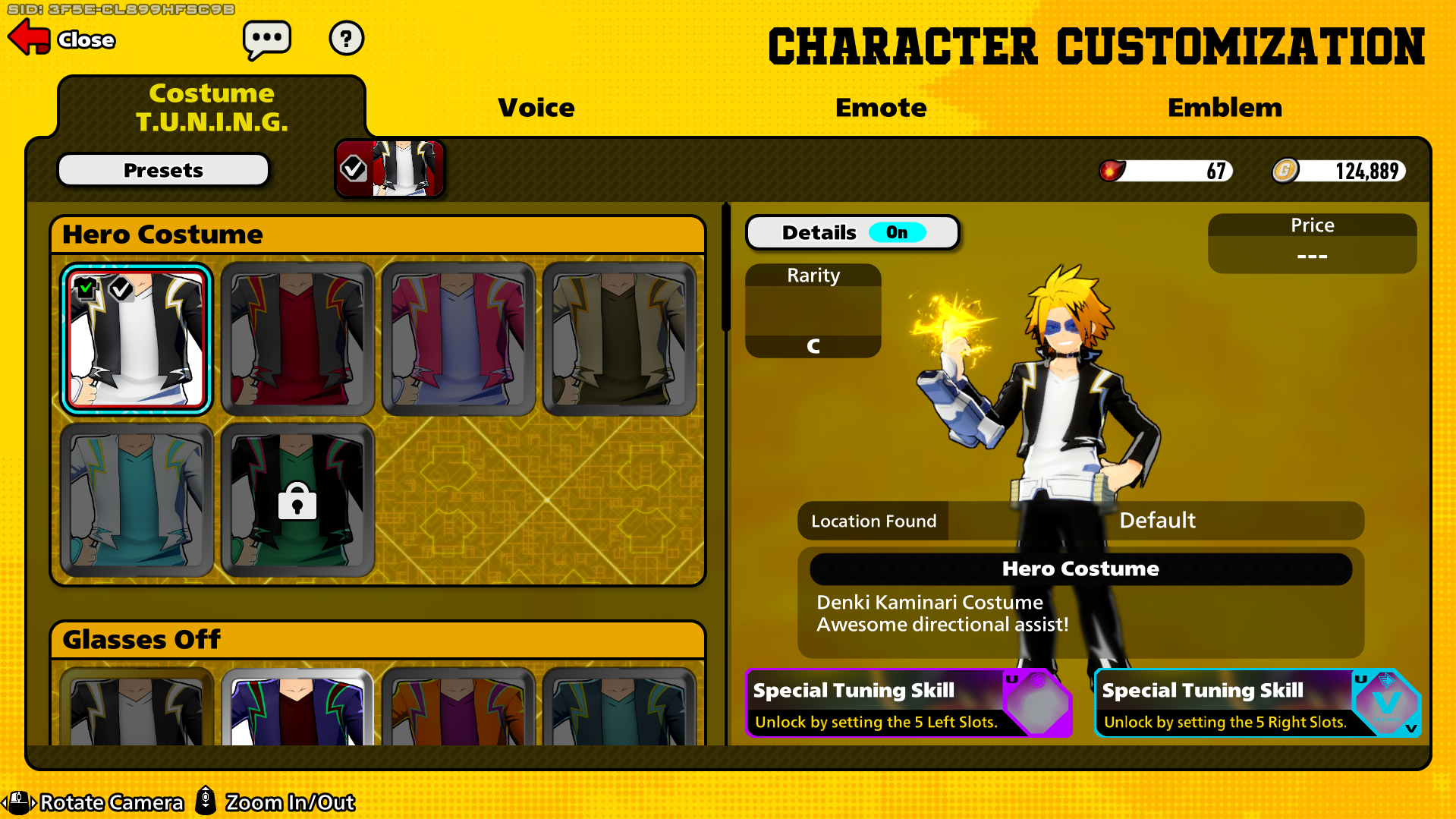
Costumes have rarities, which you can see to the left of the character when hovering over the costume, and also by the frame's color. The rarities are:
- C Rarity (Common): Only the costumes characters wear by default have this rarity. These costumes have a red frame.
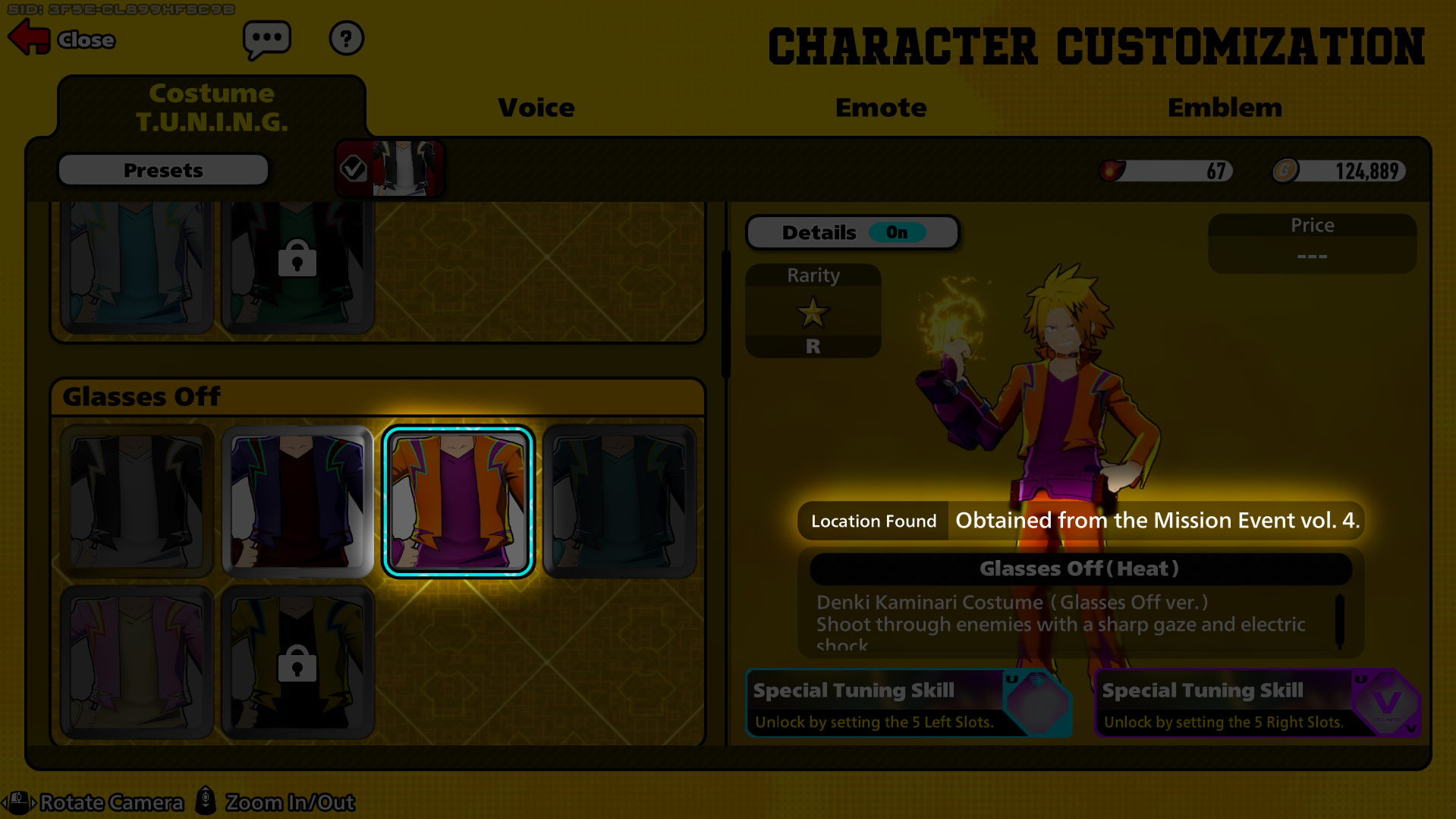
- R Rarity (Rare): The rarity of costumes' color variations (except for the ones for maximum rarity costumes). These have a silver frame.
- SR Rarity (Super Rare): An uncommon rarity only possessed by the default color variation of some skins. These have a golden frame.
- PUR Rarity (Plus Ultra Rare): The most valuable and abundant costume rarity. Color variations for these skins retain this rarity. These have a rainbow frame.
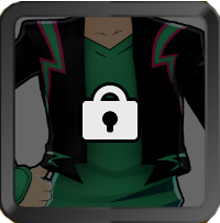
Costumes and their color variants can either be obtained from gacha banners, from the Hero License/Pro License and the Special License, from Ranked Rewards, from Event Shops, or by unlocking them with gold (below PUR rarity) or hero souls (PUR rarity) by clicking the costumes with a padlock.
To see how to obtain a specific costume, check their "Location Found". A good chunk of skins and recolors are permanently lost if you didn't get them in time however, such as past Ranked Rewards, past License costumes, past Event costumes or birthday costumes.
If you click a costume you own, you will see 5 options:
-
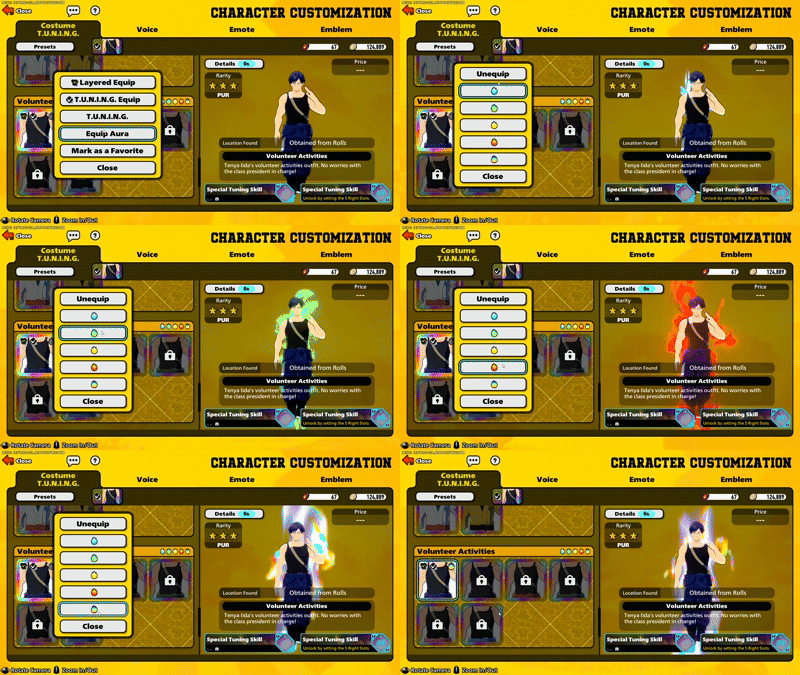
Layered Equip: This makes you equip a skin VISUALLY, the skin you layer will be the skin you and others will see.
-
T.U.N.I.N.G. Equip: This makes you equip a skin's Tuning build without equiping it visually, in case the build is godly but the costume hits like a divorce. If you don't know what Tuning is click HERE.
-
T.U.N.I.N.G.: This will open the Tuning screen, where you can equip your character small buffs and two special passive abilities.
-
Equip Aura: This allows you to equip your character with an aura. Auras come in 5 types: Tiny Blue Aura, Small Green Aura, Medium Yellow Aura, Huge Red Aura and Very Huge Ultimate Aura (this last one is white-rainbow for hero characters and purple for villain characters). Auras are exclusive to PUR costumes, and they can be obtained by unlocking the Tuning slots on the right column of the costume's tuning build, or by getting the same costume more than once (the latter shouldn't be done on purpose, if you want an aura, just unlock the slots). You can adjust who can see these auras in the Settings menu.
-
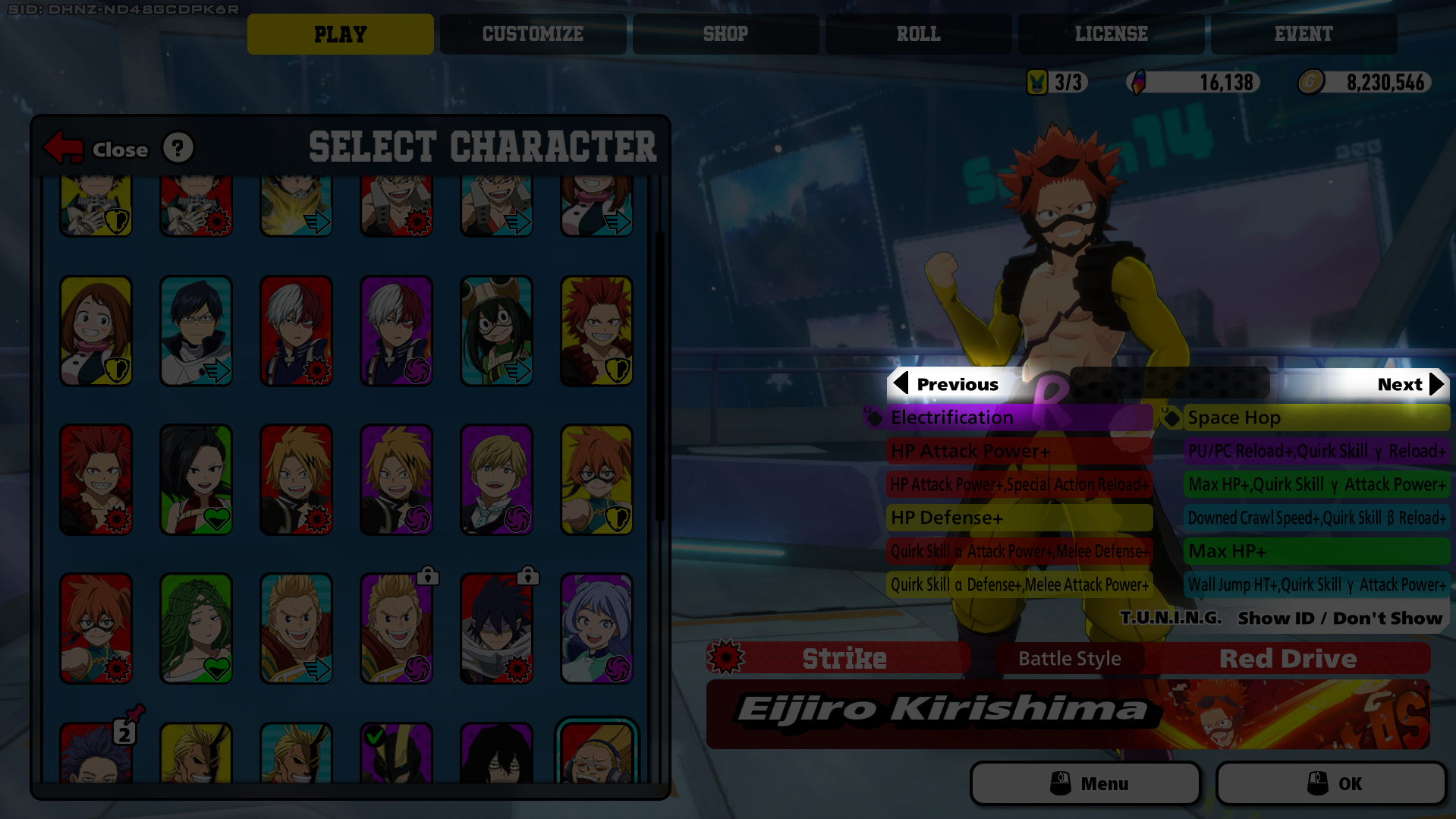
Mark as a Favorite: This will allow you to mark a build as favorite so you can swap between one favorite or another through buttons in the Character Selection Screen.
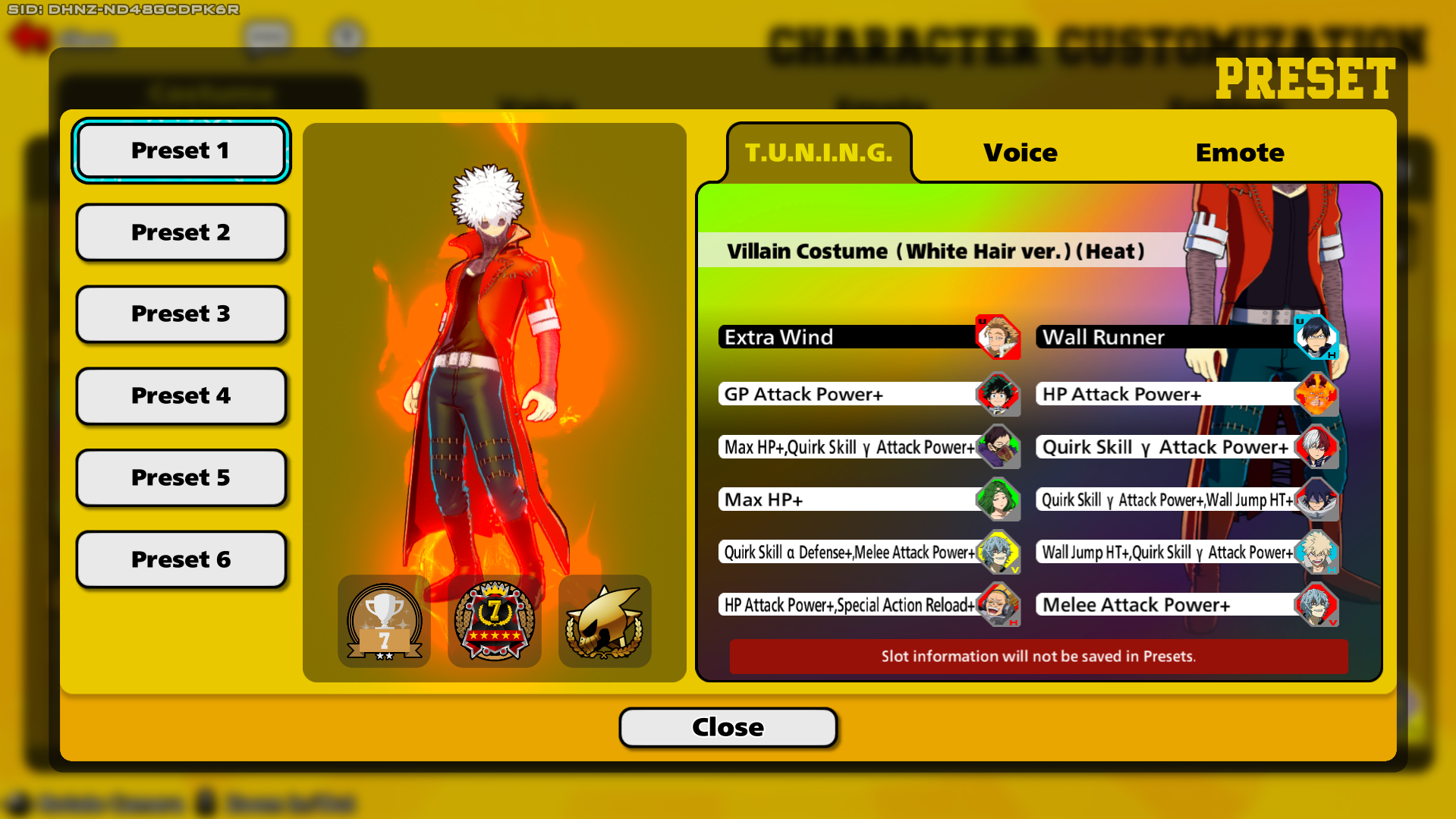
There's also a "Presets" feature located at the top left of the screen, where you can Save or Load different presets, in case you want to quickly switch from an aggressive build with White Hair Dabi as your layered costume or switch to a defensive build with Cyberpunk Dabi as your layered costume. Each preset can also have a different emote, voice or emblem set.
Voice
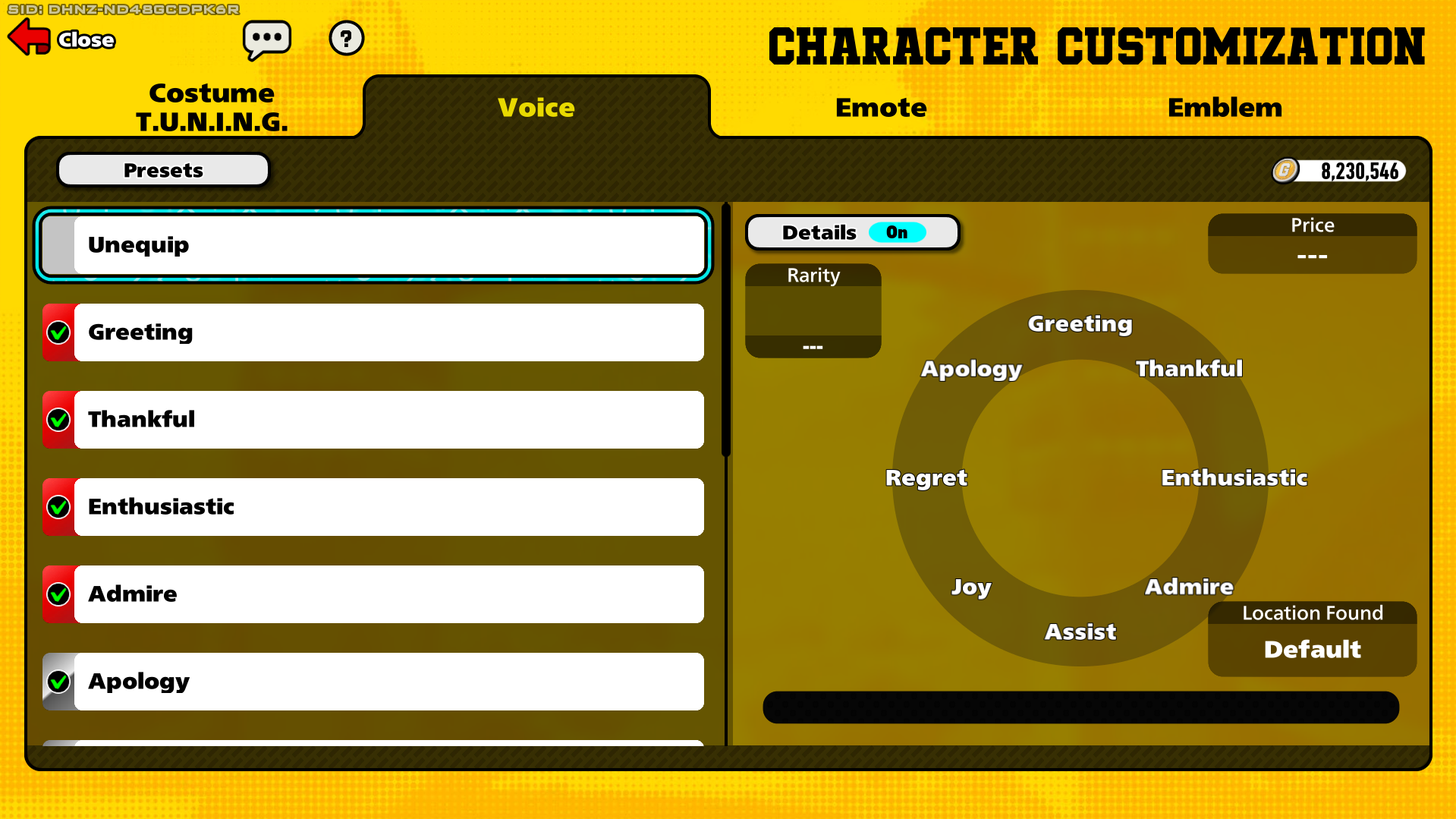
Here you can add, remove or change the voices in your voice wheel, as well as buying some of them for gold. If there's one you find funny or simply like, feel free to add it, but one you should have is either an Apology or Regret voiceline to let your teammates know that you're sorry when you mess up or when they've been DOWNd but you can't do anything for them, it will make interactions smoother.
Emotes
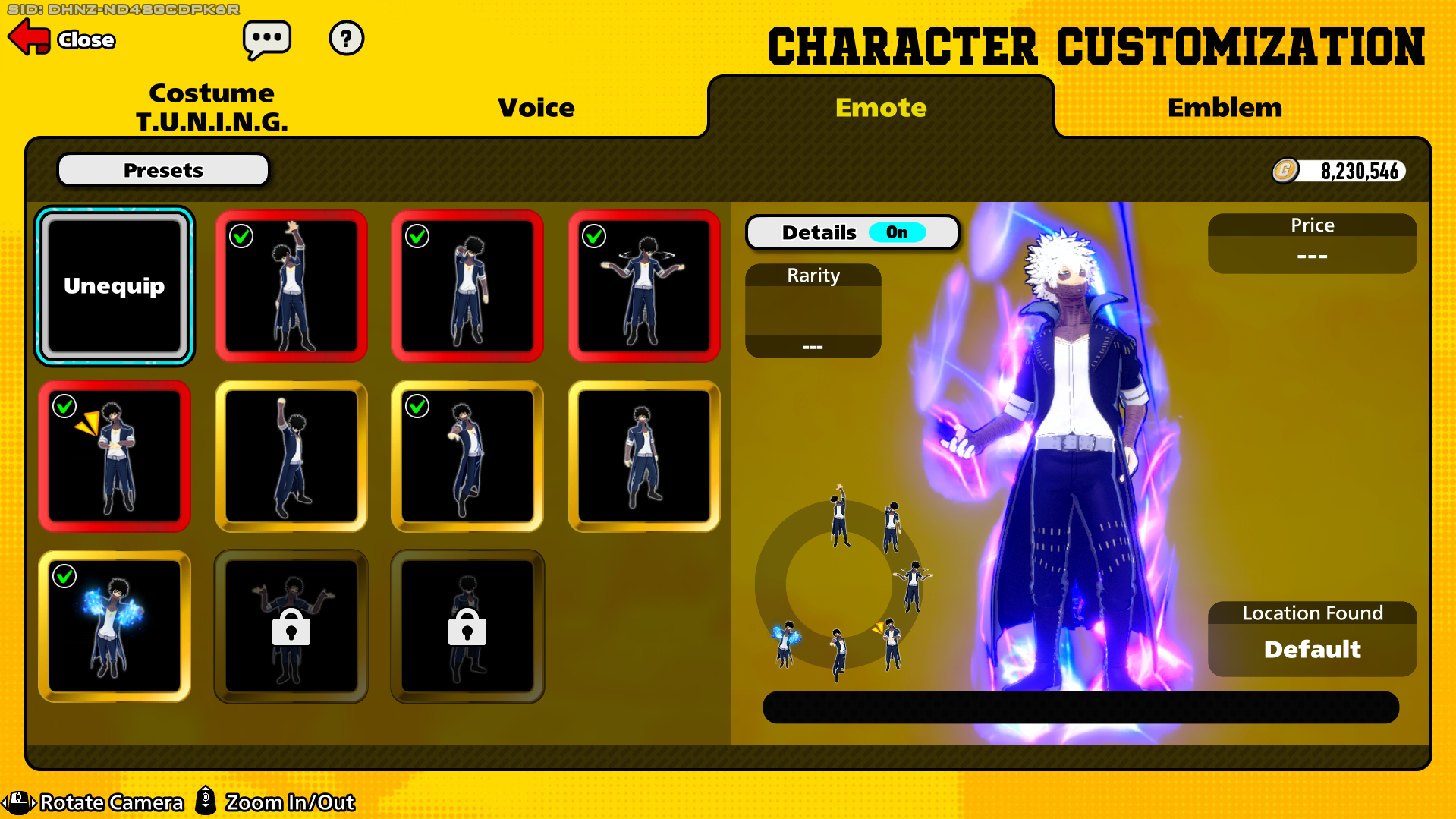
Here you can setup your emote wheel to increase expressiveness with enemy teams and allies, and overall have a fun time. You can also use these in the Win Screen if your team won. Every character comes with a set of default emotes of Common (C) rarity:
- Greeting: A simple emote to say Hi, nothing too crazy.
- Roger That: An "I Agree" emote, quite friendly and shows approval.
- No Can Do: An "I Disagree" emote, either used in mindless emote-spamming, or to show your distaste for something, like when your teammate is being morally questionable with a DOWNd enemy.
- Clap Your Hands: A simple clapping emote to socialize further. It can be used to tell your enemy they did well (mostly in solos), but some people might take it as an insult, especially when coming from Bakugo or Shigaraki.
SR Rarity emotes can be unlocked from the gacha, events, or by buying them with gold if they have a padlock on top. These can be (but not limited to):
- Bow: A bow used often to signal respect or apology, either because they played well but still lost, or because you felt you were a bit too harsh even though it's the nature of the game.
- That's The Point: Usually an emote where the character points forward. Usually used in the Win Screen as a "Ha! Take That!" to boast about your victory or sometimes to mock the enemy (Please don't).
- At Attention: A straight pose without much going for it.
- Triumphant: A celebration emote often used in the Win Screen to celebrate your victory!
Unlike R Rarity emotes, PUR emotes do exist, though currently only 3 of these exist, these being Ochaco Uraraka, Tsuyu Asui and Nejire Hado's "Dance" emotes, which can be bought along with a crystal pack for real money in the Premium Shop.
Emblem
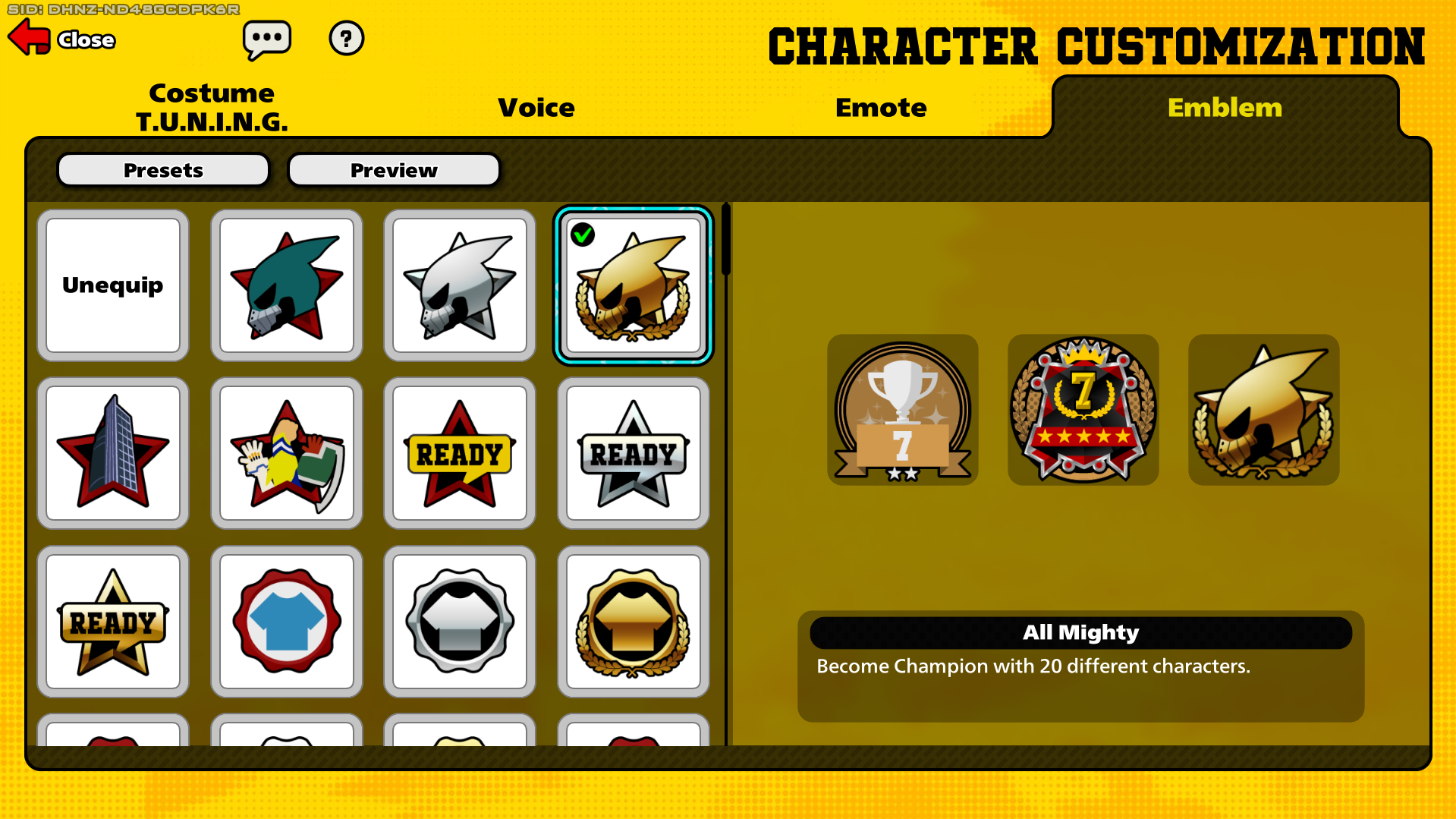
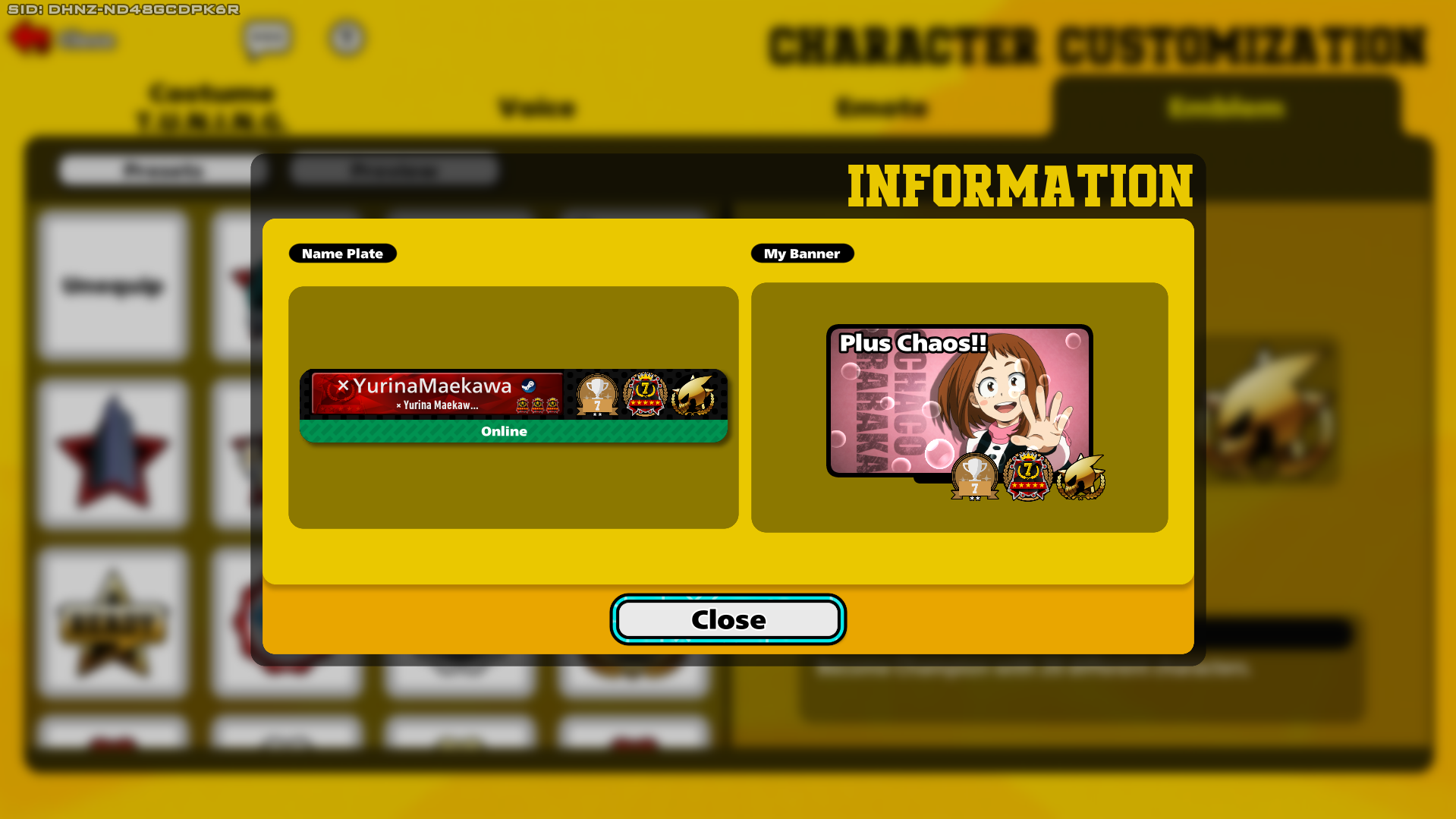
Here you can set the 3 emblems that will be displayed in your profile, My Banner, and the friend list/"recently played with" list from other people. The emblems you set are specific to that character, so if you equip these on Bakugo but decide to play one round on Shoto, those emblems won't appear, as you will be on Shoto. These emblems are obtained from completing missions labeled as "Special". You can see a preview by cling "Preview".
Keep in mind that you can only equip General Emblems or Character Specific emblems that match your character, meaning that you can't equip Shoto emblems on Dabi. Finding out which emblems are character-specific isn't that obvious, since aside from those that feature the character's face, there are many like the KO and Damage ones that are character specific, yet this isn't specified anywhere.
Customization: My Room
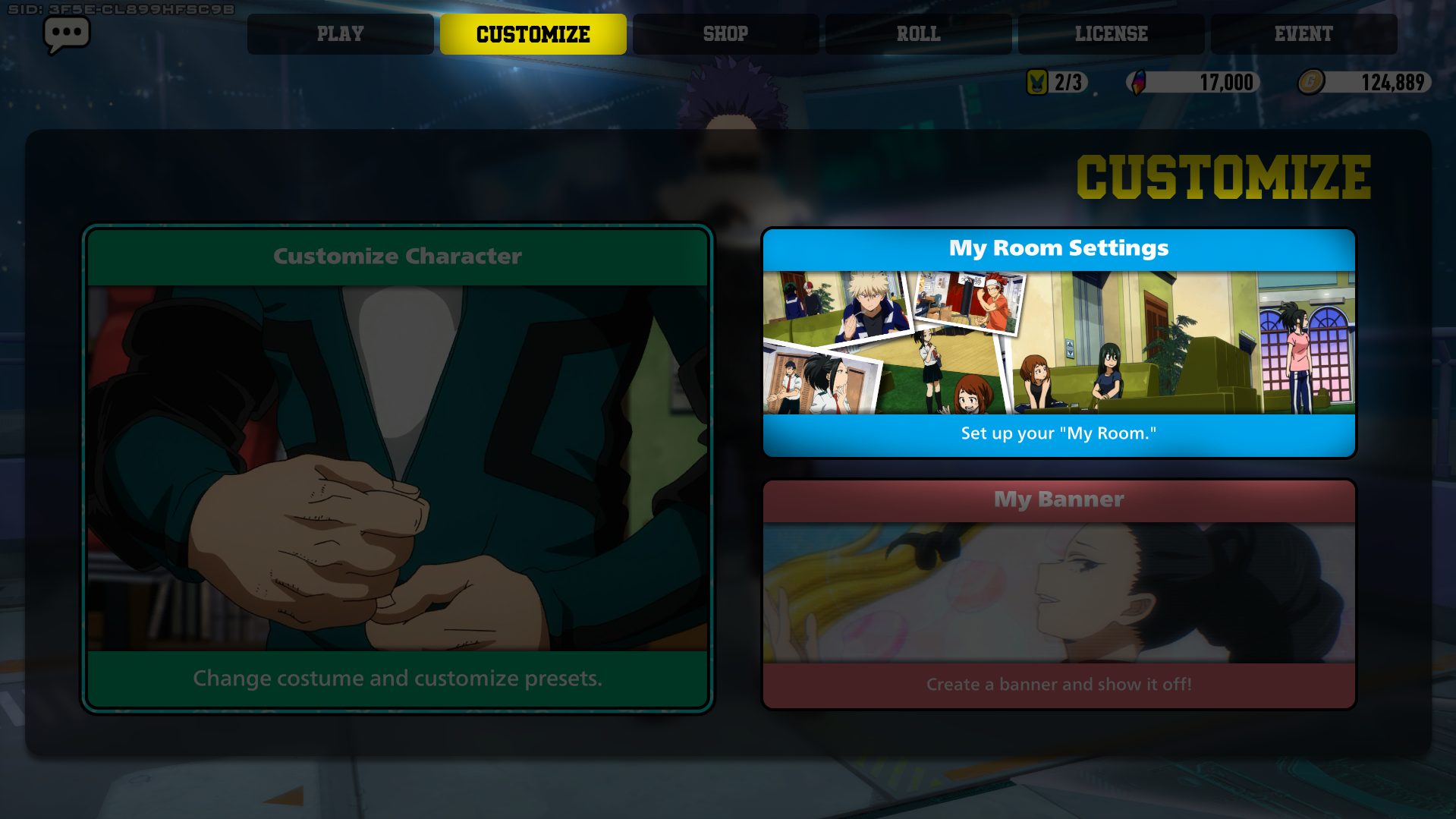
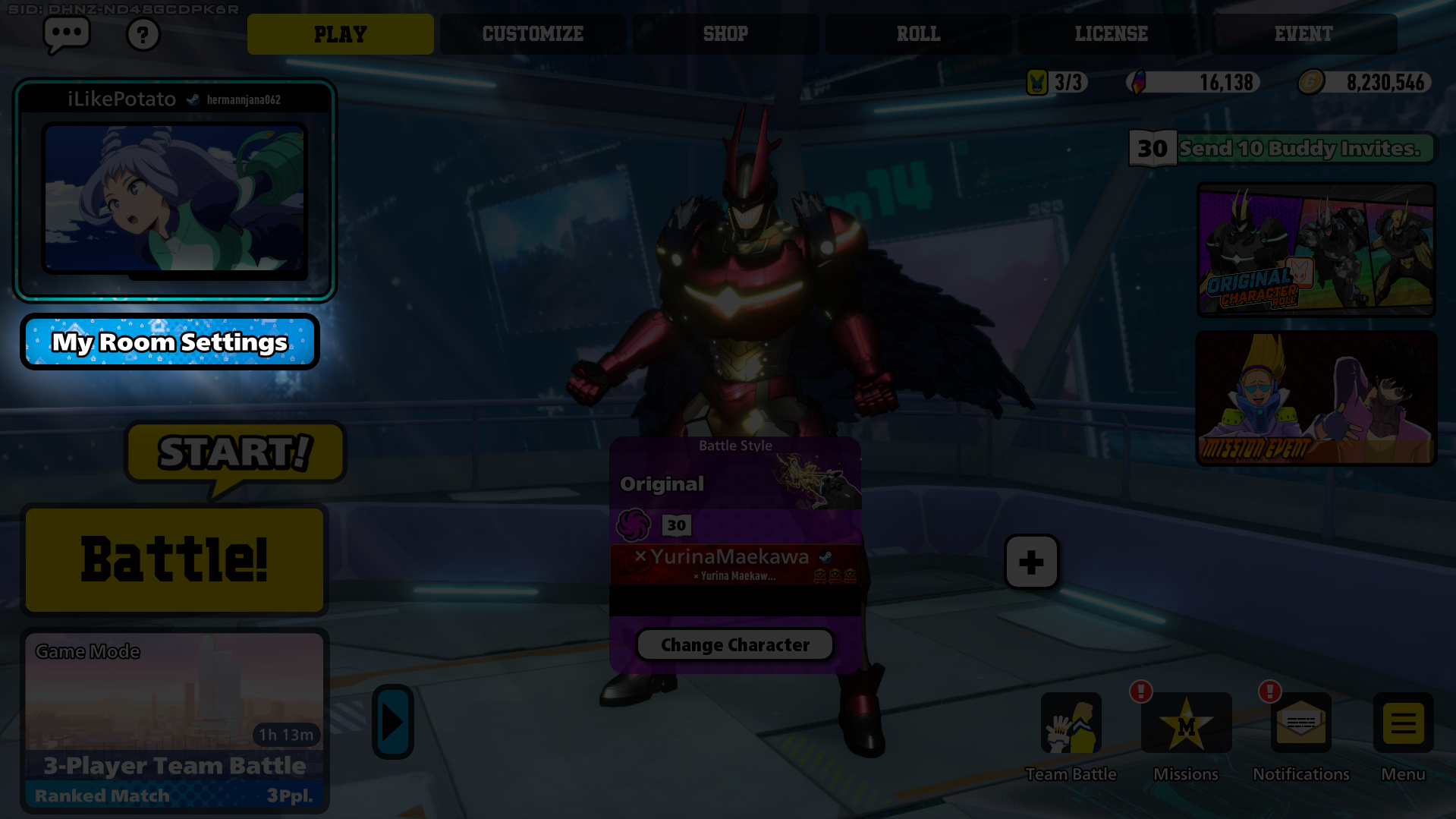
The My Room feature allows you to change your Pre-Lobby background and add characters to it to make your Pre-Lobby more lively. There are two ways to access the My Room customization. The easiest is by just pressing "My Room Settings" in the Play screen. The second is by moving to the Customize Tab and press My Room.
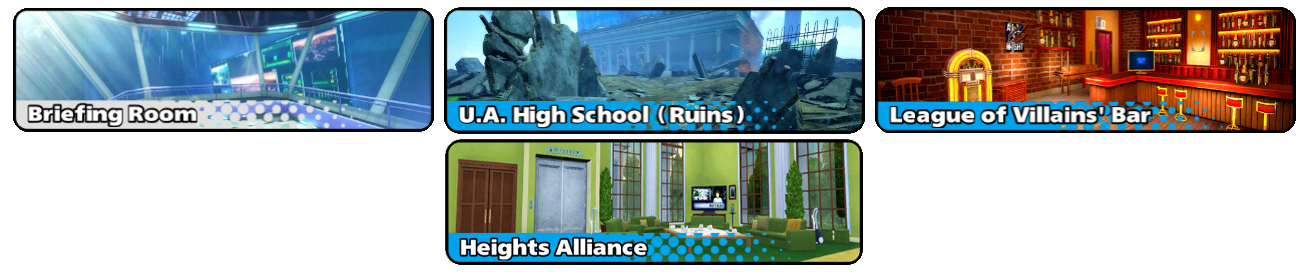
You can choose between 3 My Room backgrounds
- Briefing Room: The default background that changes with every season.
- U.A. High School (Ruins): A background based on the Coffin in the Sky, available to use from the very beginning.
- League of Villains' Bar: A background you can unlock by logging into the game 10 days. Claim it from your "Special" missions.
- Heights Alliance: You can unlock this background by battling 3 times in Season 15. Claim it from your "Seasonal" missions.
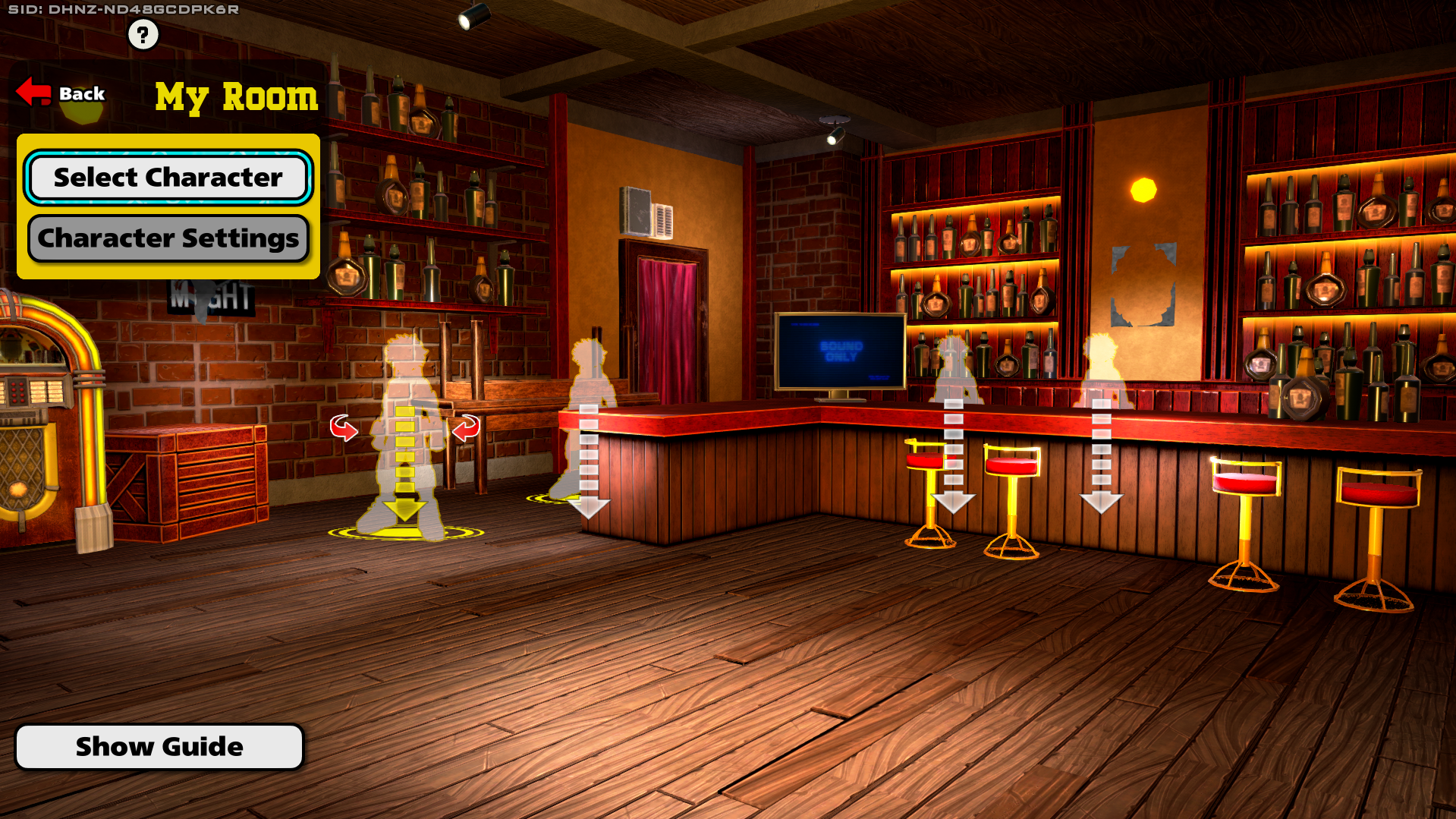
Excluding Briefing Room, you can set up to 4 characters in these backgrounds and rotate them to look in whichever direction you wish. By default, these characters will have the costume and emotes you have equipped on them, but you can press the Character Settings button to change their costume and emotes, this will not affect your actual builds, only the My Room characters. You can als otake away their emotes if their noise is bothering you.
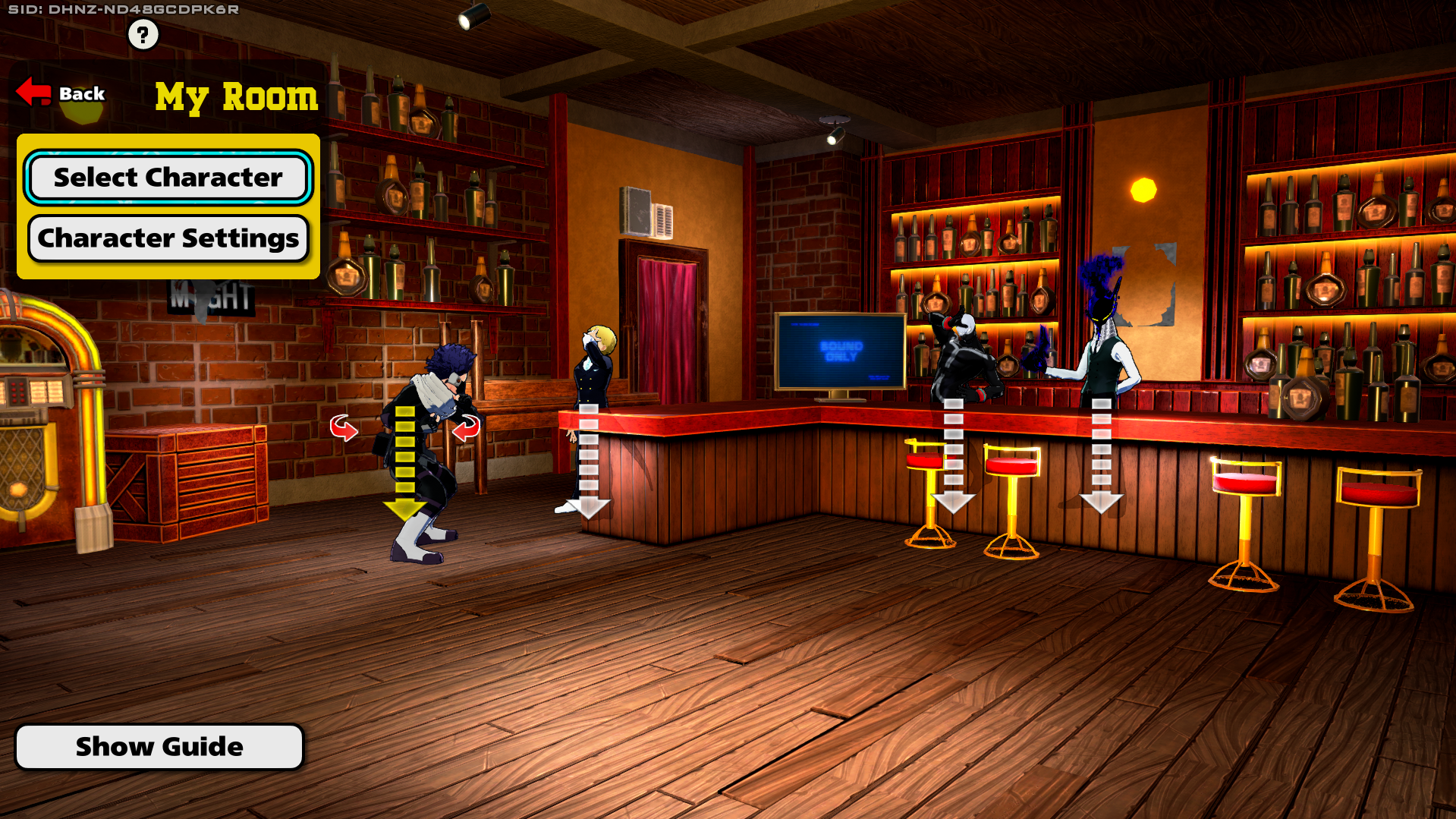
You can also remove them by clicking them on the right side of the My Room Character Selection.
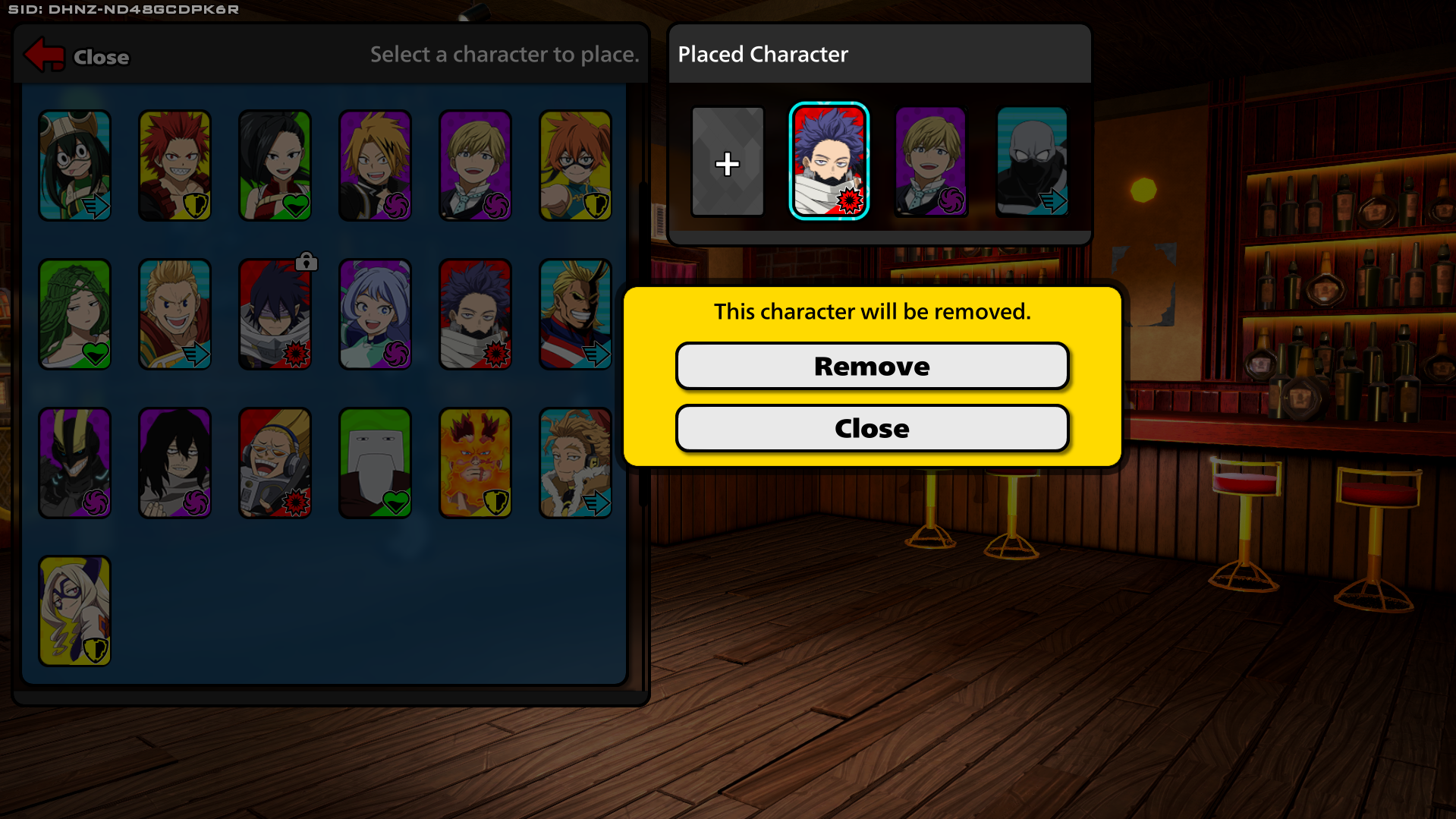
Excluding Briefing Room, all backgrounds have different "skins" or "appearances" you can apply to them. These are unlocked from both Seasonal and Special Missions.
Customization: My Banner
The "My Banner" feature allows you to setup an "animated" image in your profile, as well as broadcast it to the rest of the world, showing up in the top left corner of the Play screen.
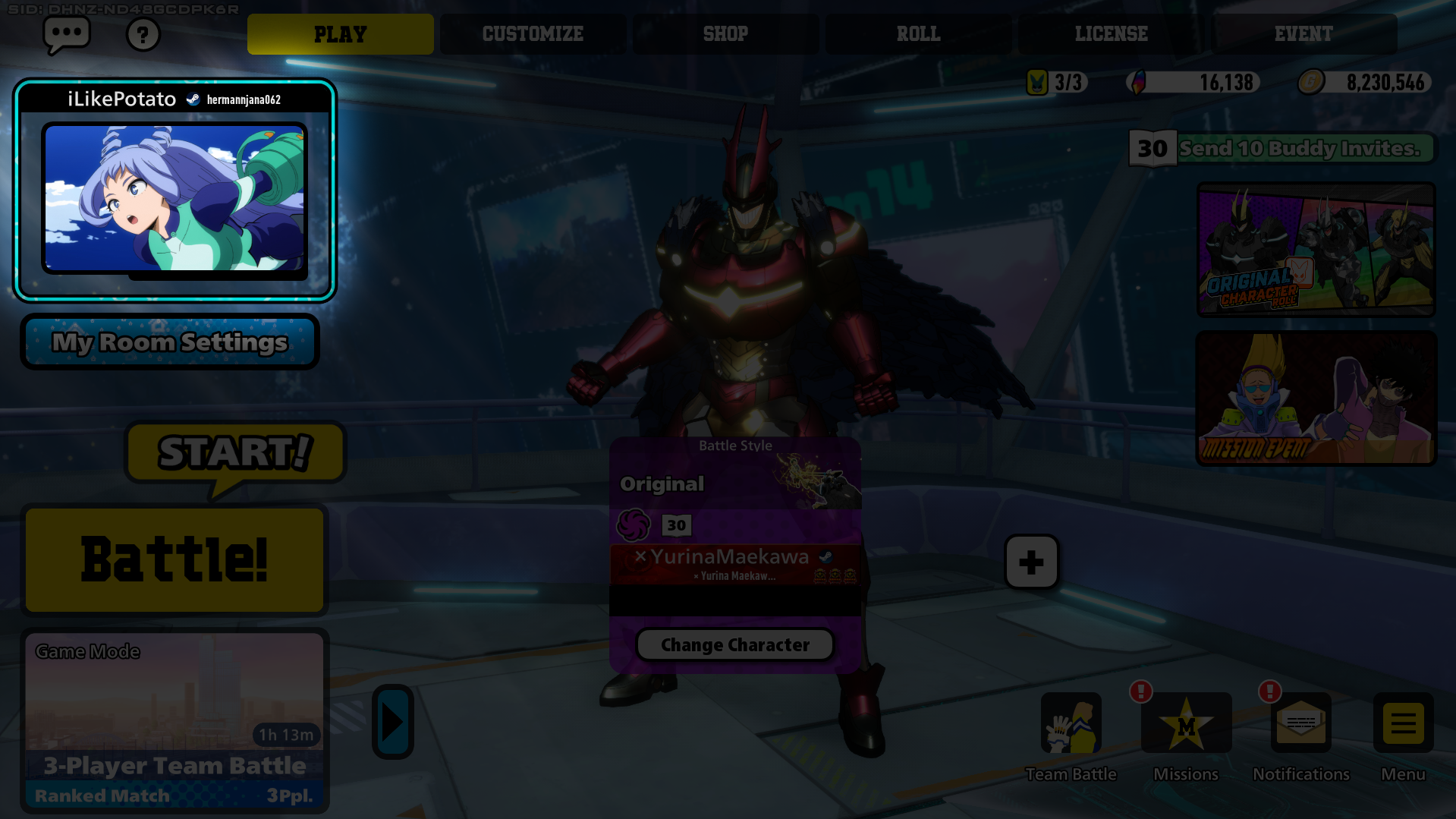
To customize this feature, go to the Customize Tab and press My Banner.
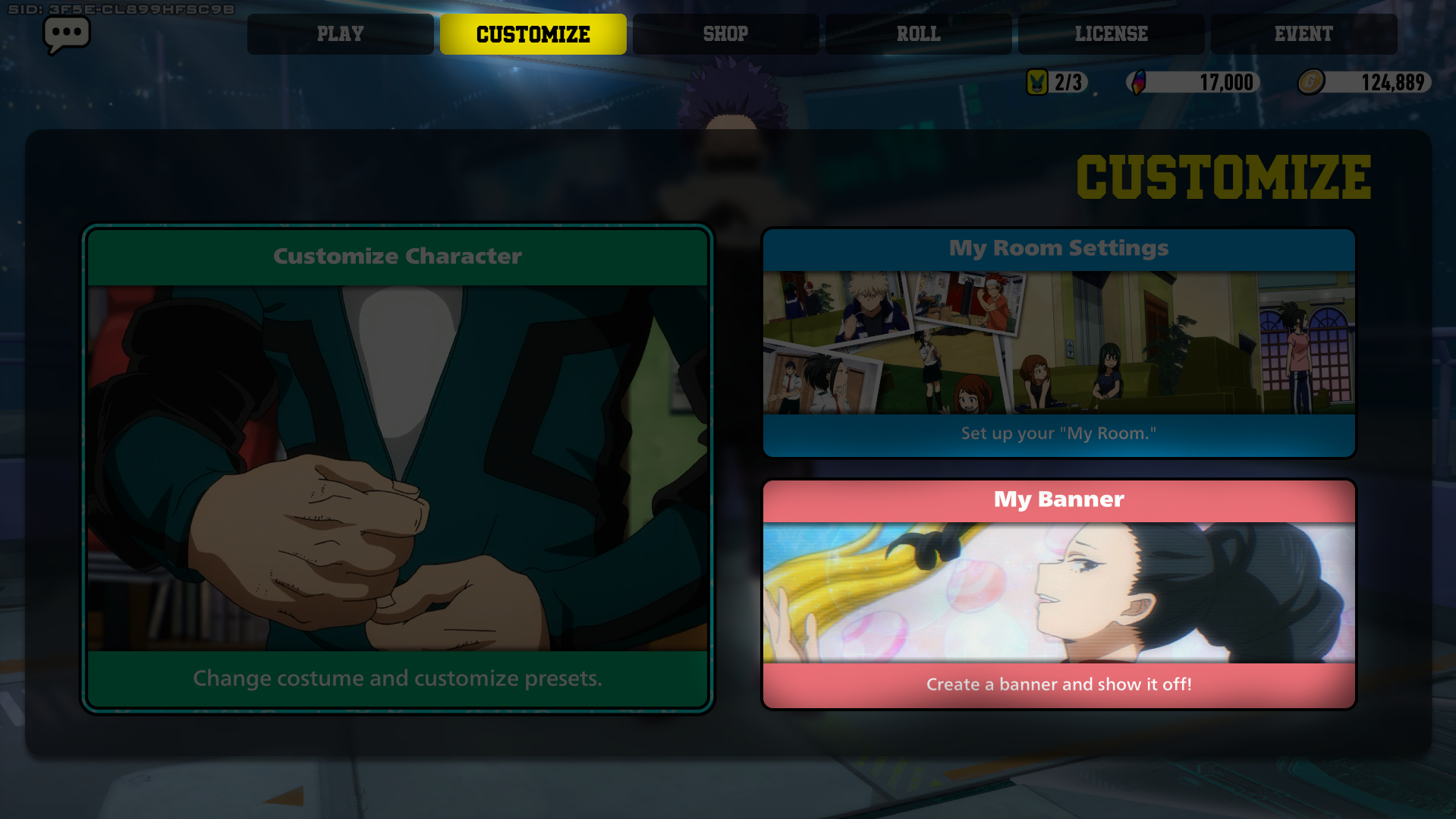
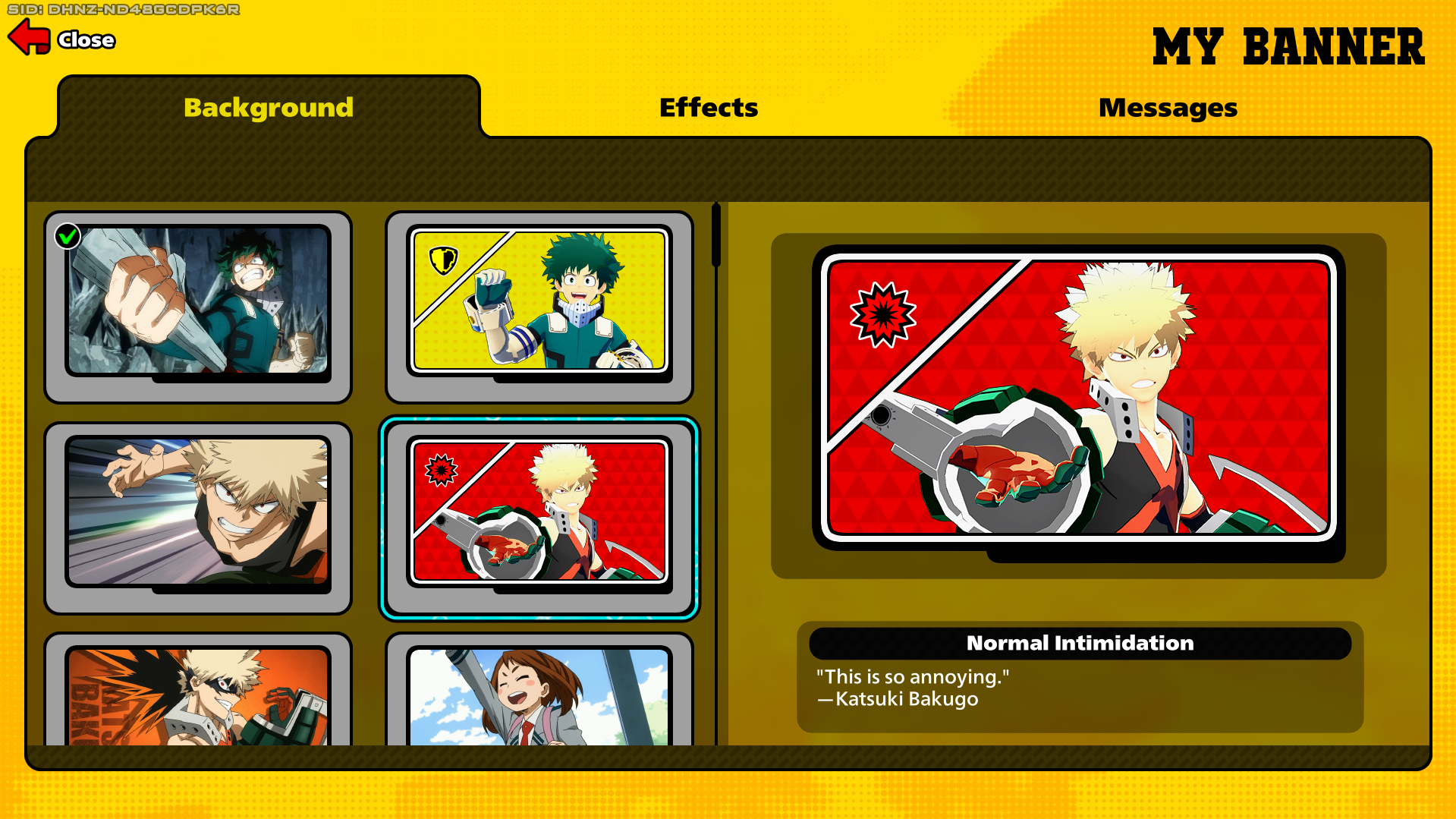
In the "My Banner" screen you will see 3 identical slots. You can make a different banner in each of these. If you scroll down, you will see there's a 4th slot you can unlock paying gold, which you can do if you find yourself in need for it. When clicking one of these slots, you will be able to choose:
- Edit: To edit the banner.
- Reset: To reset it to the default state.
- Broadcast: To show it to the whole world by making it appear on the top left of the Play screen of other people.
- Set as Profile: To put it in your profile.
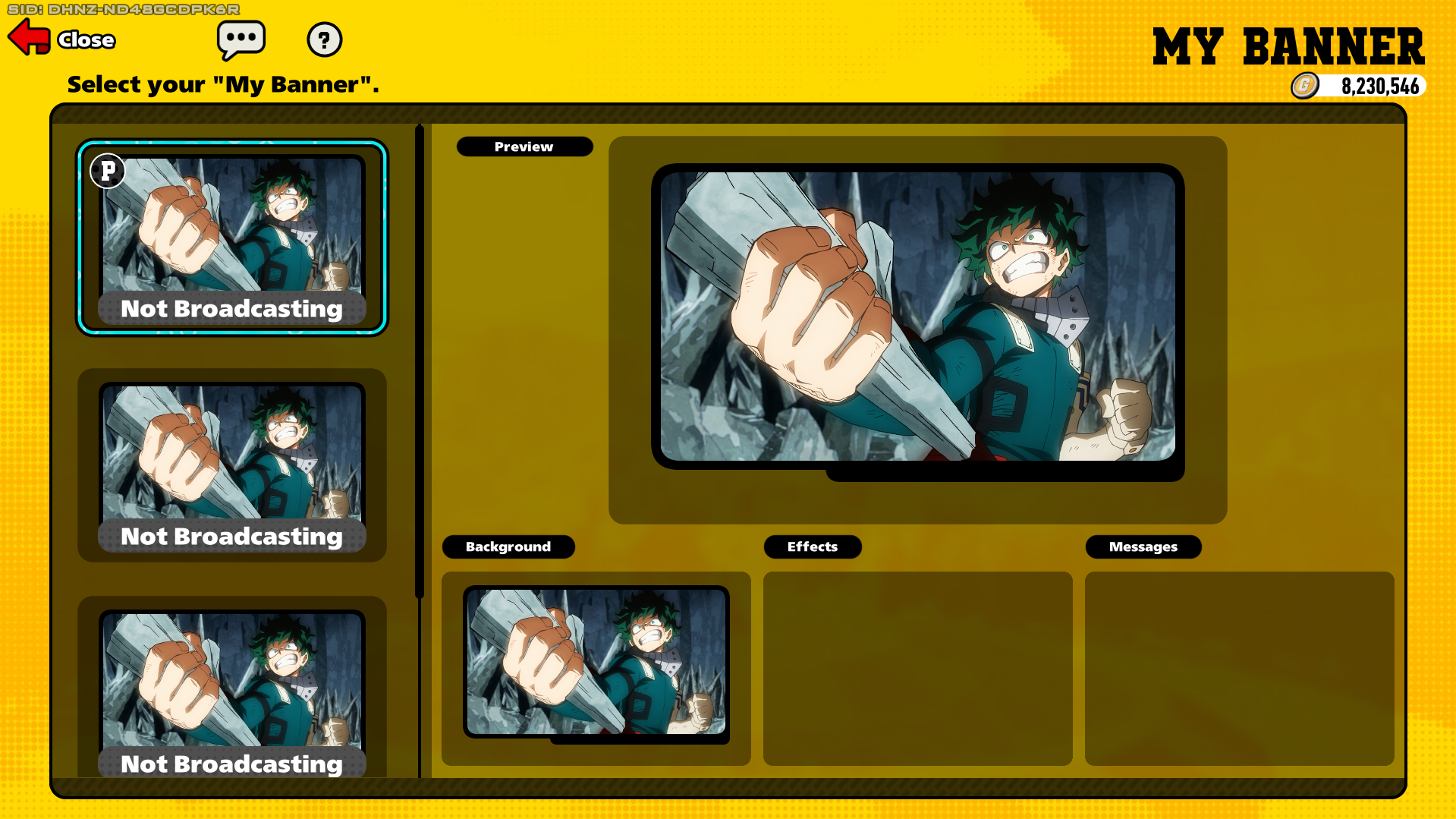
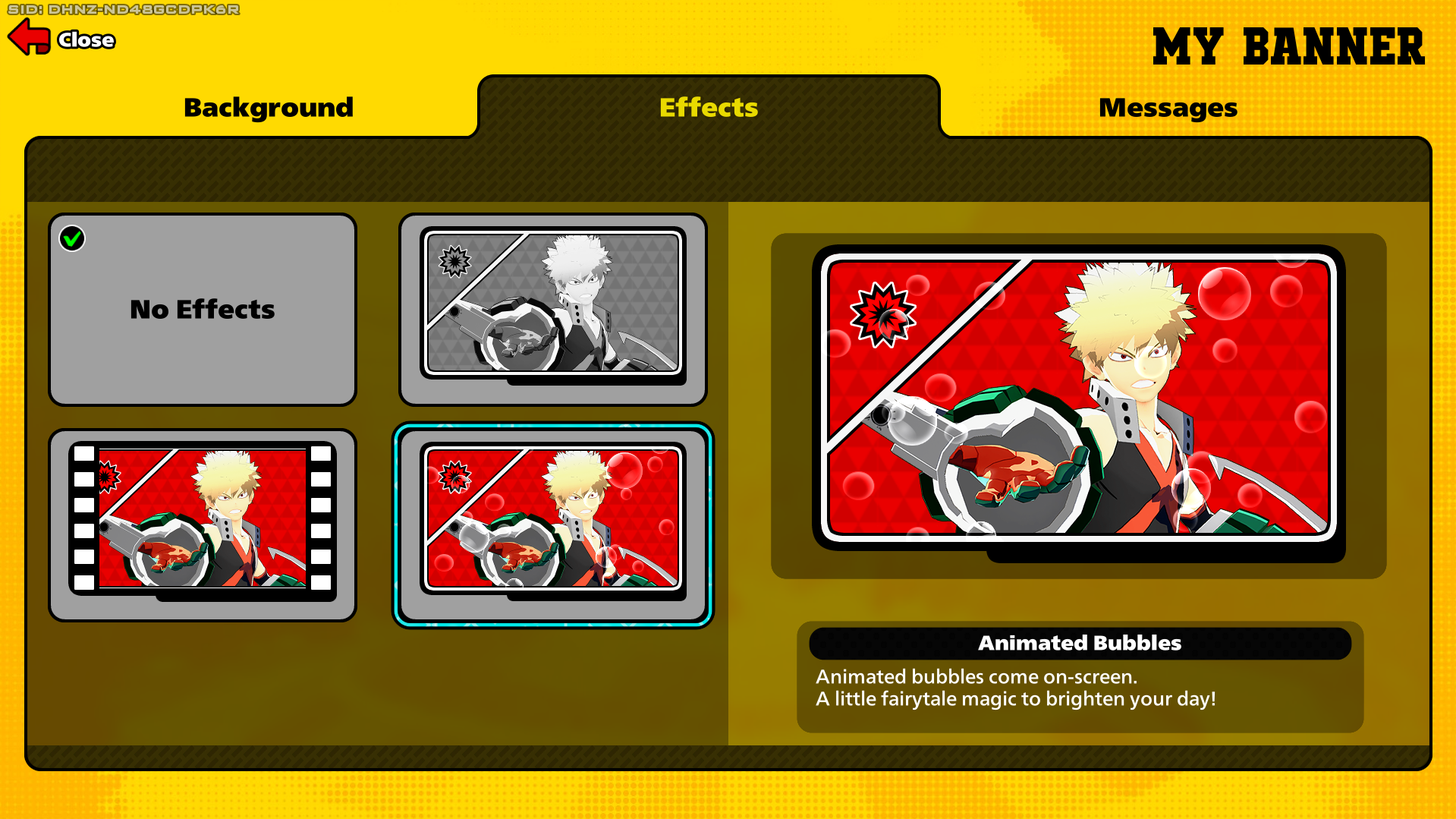
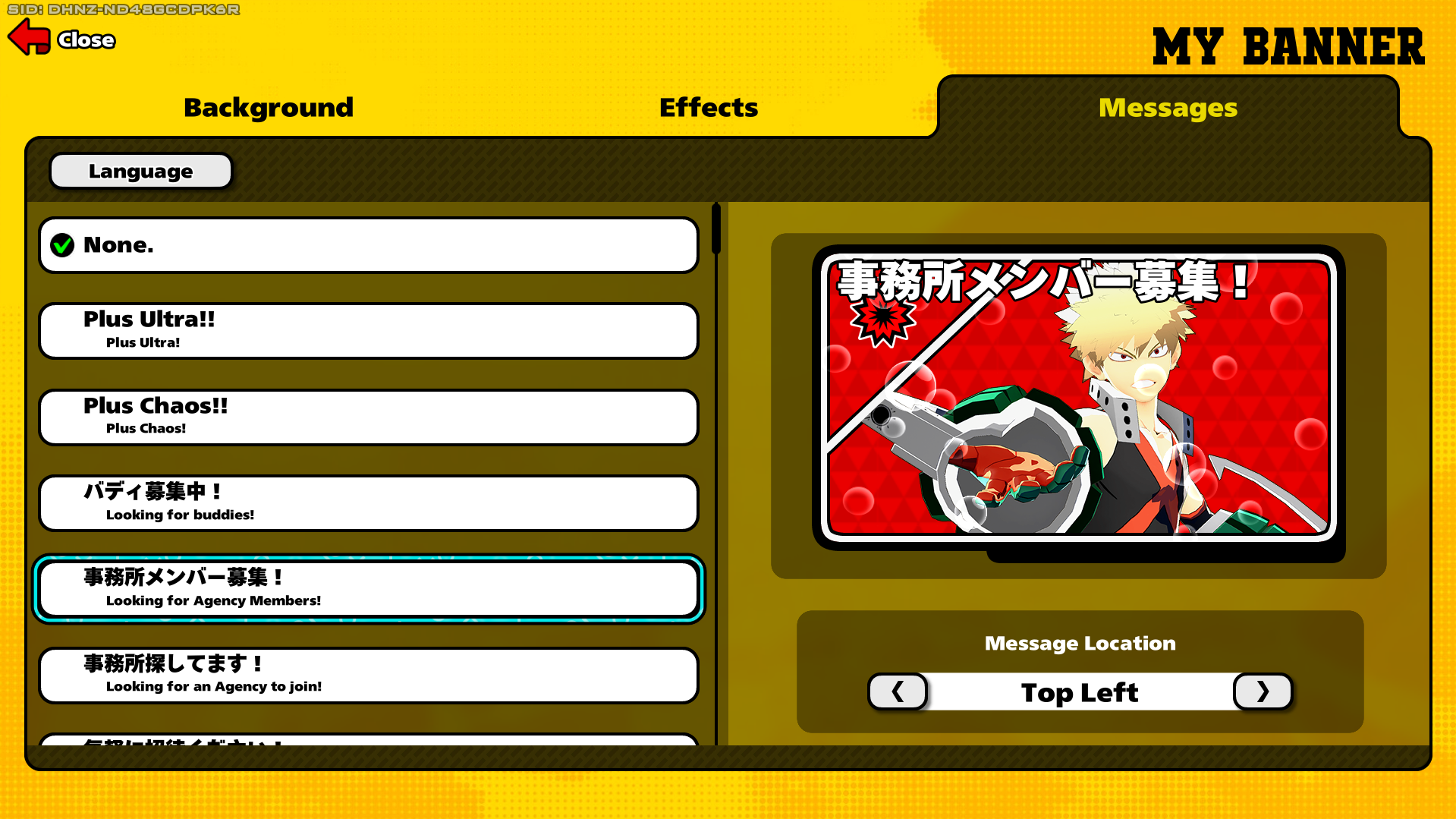
A banner is made up of 3 parts: The Background, the Effects and the Messages. The background is simply the image that will appear on the banner. The effects are special details added to it, like bubbles that float upwards or a film frame. The message is a word, phrase or sentence you put. You can't write the message itself, only pick one of the options you have available, but you can change its position and language.
Customization: Nameplates
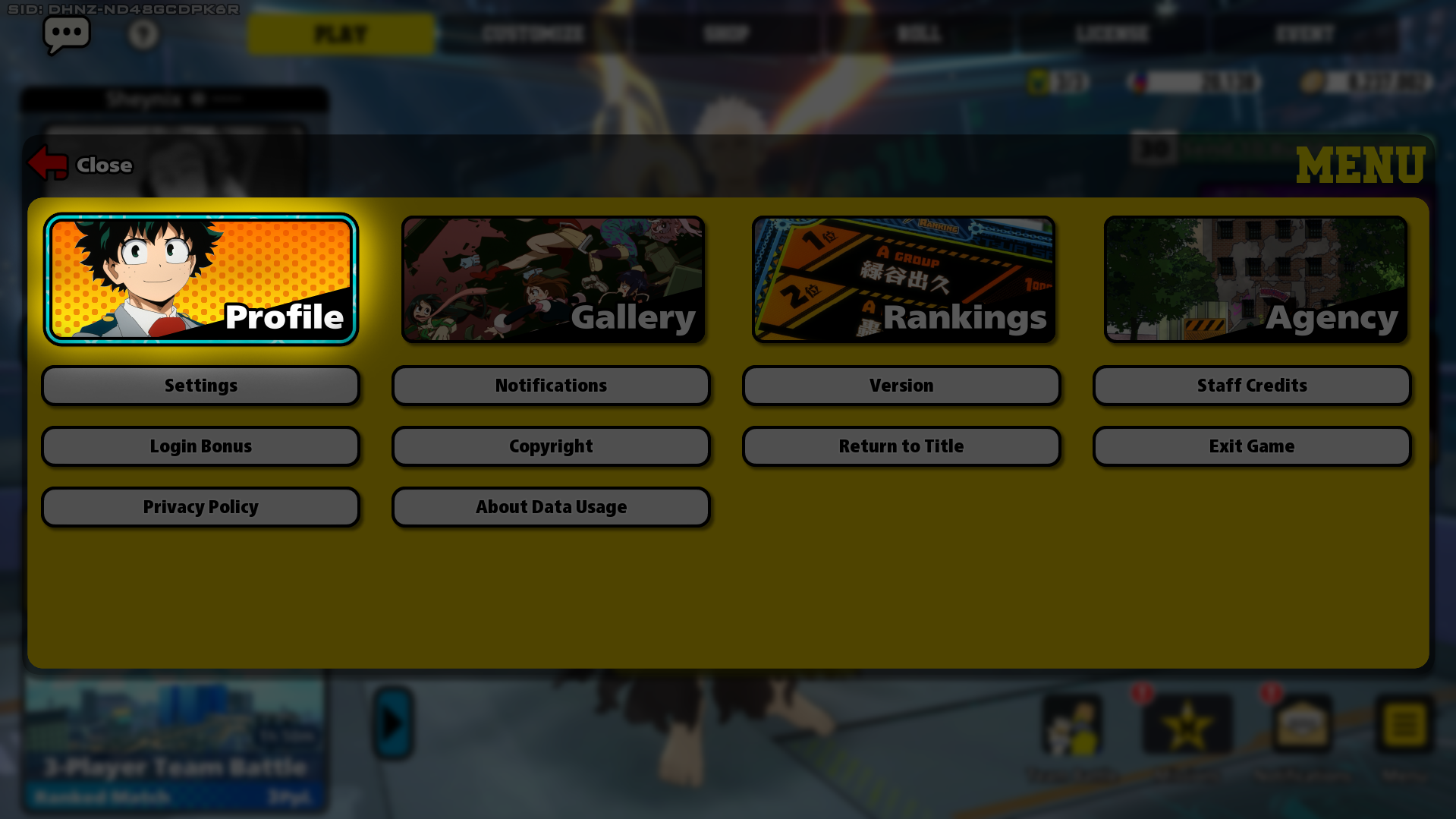
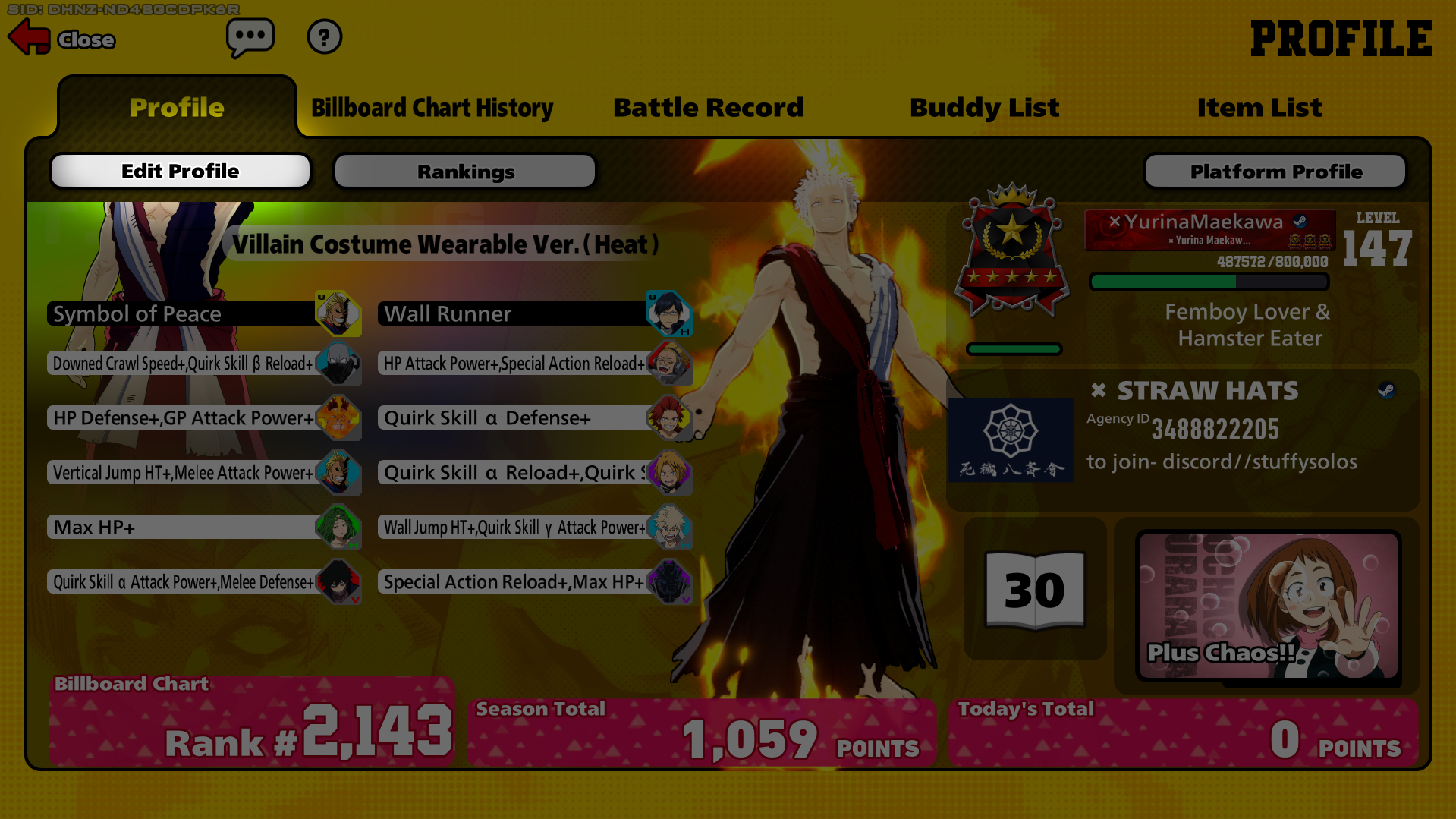
Unlike the other customization options, nameplates aren't found in the Customization Screen, but rather in your profile, which you access by clicking the "Menu" button on the bottom right corner in the Play screen and then going to the image-button that says "Profile".
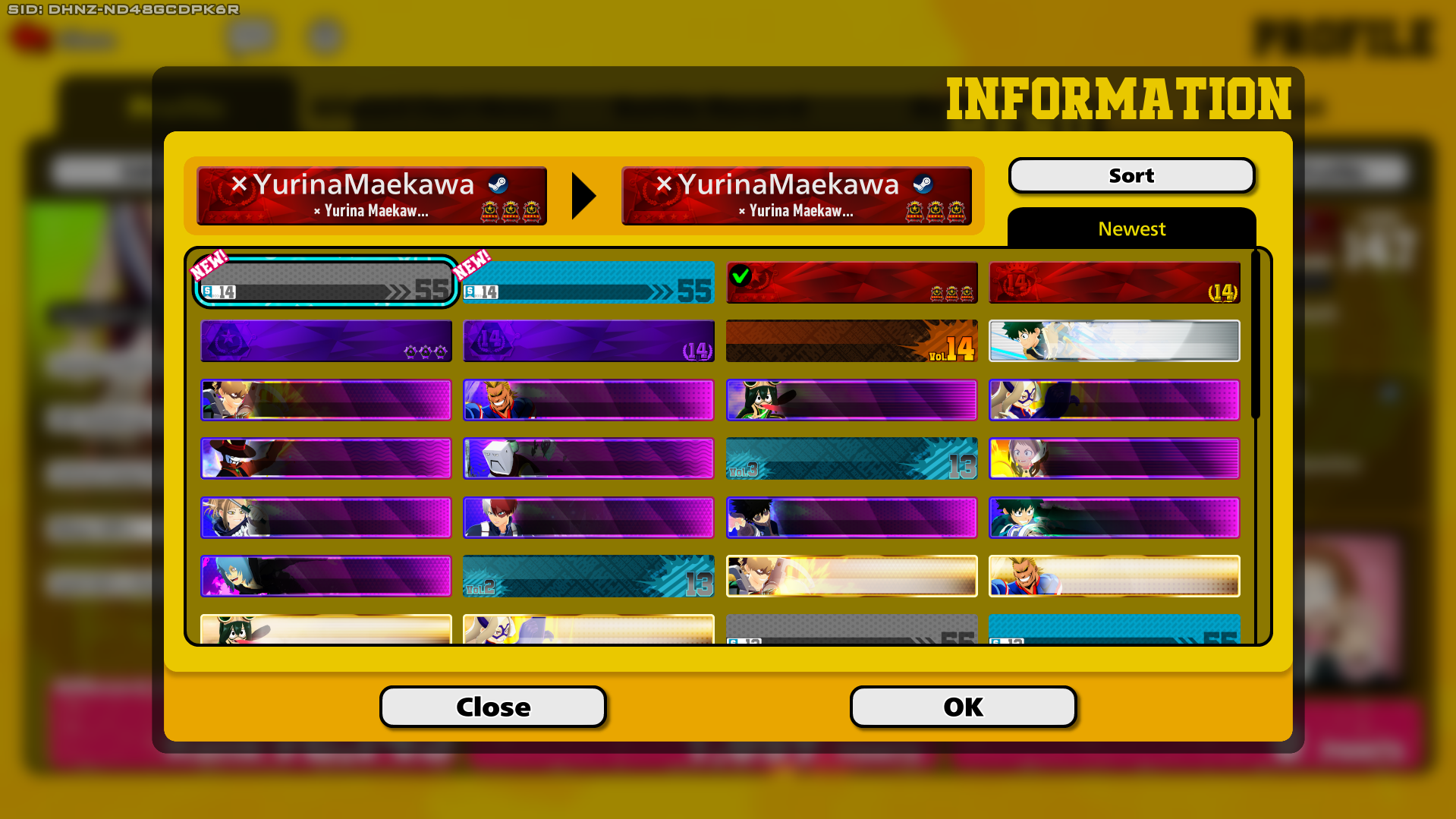
To change your nameplate, go to "Edit Profile" and press "Change Nameplate", this will show you the list of nameplates you currently own, choose whichever you like most!
You can unlock more by reaching Expert and Ace, reaching level 55 in the Hero/Pro Licenses, from events, from missions, and from buying them in the Standard Shop or by getting some characters more than once.